Story Architect 0.8.2
Hello everyone!
Friends, I apologize for the silence over the past 3 days — we've been working hard to restore at least the core parts of the service as quickly as possible. We've made good progress, so I'm here to share updates and explain what's going on and how you can continue working with Starc.
Email service
Email was restored on June 5th. You can write to us at support@starc.app with any questions, share your concerns, or show your support during this situation. As usual — we're here. We'll do our best to respond to all questions as promptly as possible.
License server
A real miracle happened — we accidentally found an April backup of the database!!!
Even though it was damaged because it had been used for debugging purposes, we were still able to recover from it all data related to payments, subscriptions, and accounts created before April 13!
All payments and licenses issued after that date will definitely be restored in the near future — that is our next task. And of course we will extend the validity of all active licenses to compensate for the time our systems were down.
Cloud service
The cloud service has also been fully restored.
The one very important caveat is that the backup we found contained partially corrupted project data. For this reason we decided not to allow the version of the application currently installed by everyone to connect, in order to avoid loss or corruption of your cloud projects.
Below we describe what you need to do to avoid losing data from cloud projects you are currently working on offline:
1. Back up your cloud projects
First, prepare a separate folder where we will place the backups of your project. We recommend creating a dedicated folder for them.
Starc should automatically create project backups in the Documents -> starc -> backups folder. Open that folder and check whether a recent copy of your project is there. If the automatic backups are in place — great! Take the most recent one and move it to the folder you prepared for backups.
If there are no recent backups in that folder, don't worry — we'll simply do it manually. Launch Starc, open the required project from the cloud, then choose the menu item "Save as" — select the folder you prepared for backups and save the project there.
2. Install the update
Once the backups have been created, you can install the update that will allow you to connect to our cloud infrastructure.
- Windows 10 and above installer(portable)
- Linux - AppImage file.
3. Upload projects to the cloud
After installing the update, your project may already appear in the application. However, the data might be outdated. Open it, check it over, and if everything looks fine — congratulations.
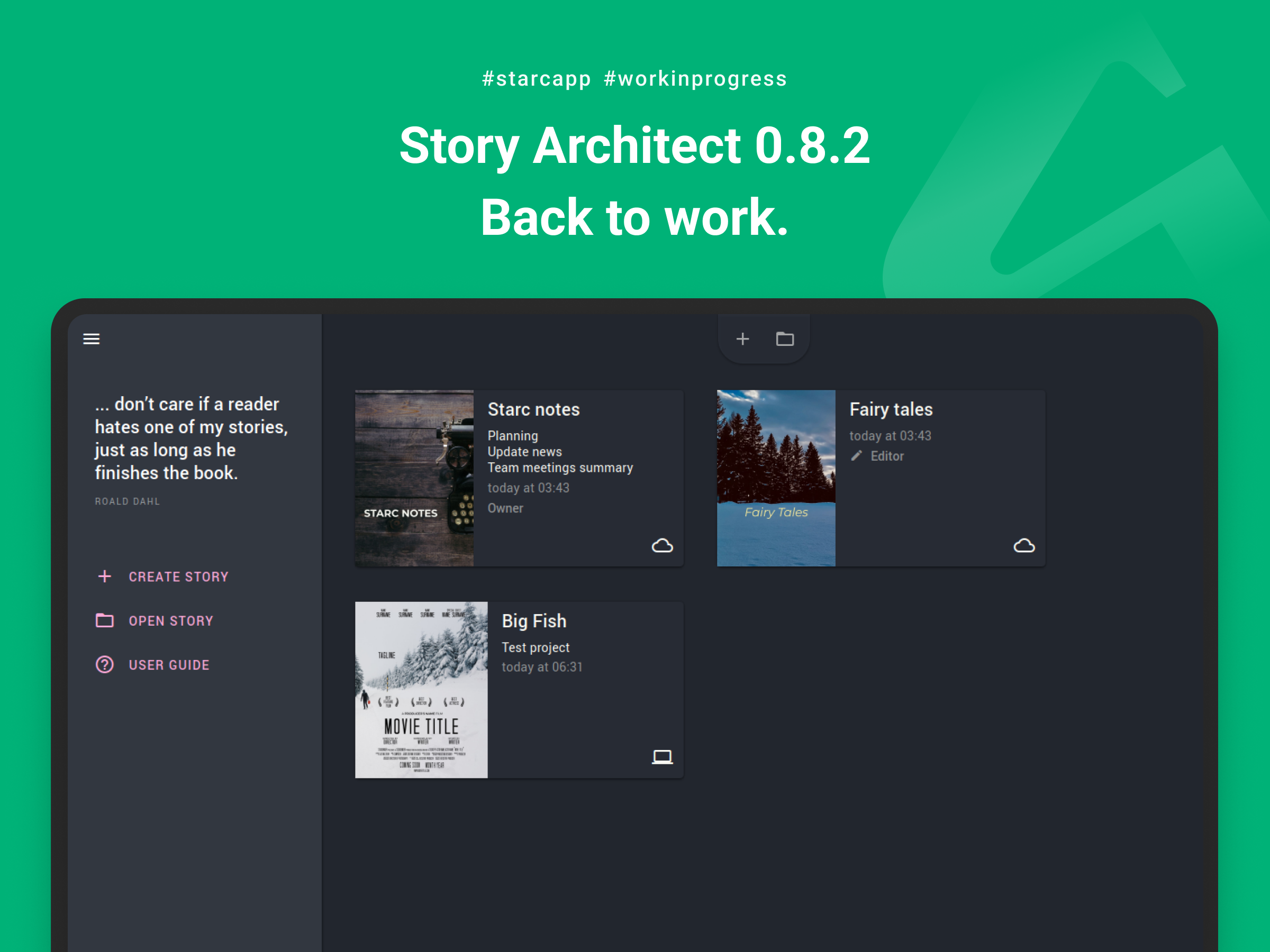
If your project data is missing, you can delete the project from the cloud. Then open the saved backup copy of the project, go to the projects list screen, right-click on the project you just opened (it will have a computer icon) and choose the menu item "Move to cloud". After that, another project will appear, this time with a cloud icon. That is the copy of your project sent back to the cloud. The local project can be hidden from the recent projects list by right-clicking it again and selecting the corresponding "Hide" option.
Your projects will now be in the cloud and everything will work as usual.
What's next?
First, we will restore the payment and subscription history for transactions made after April 12. After that, we will work on restoring all website content.
Once again, I sincerely apologize for everything that has happened... We are here. Everything will be okay!
Join our community of authors
Download Story Architect and try all features for free. Give us your feedback — let's make the best software for writers together!